
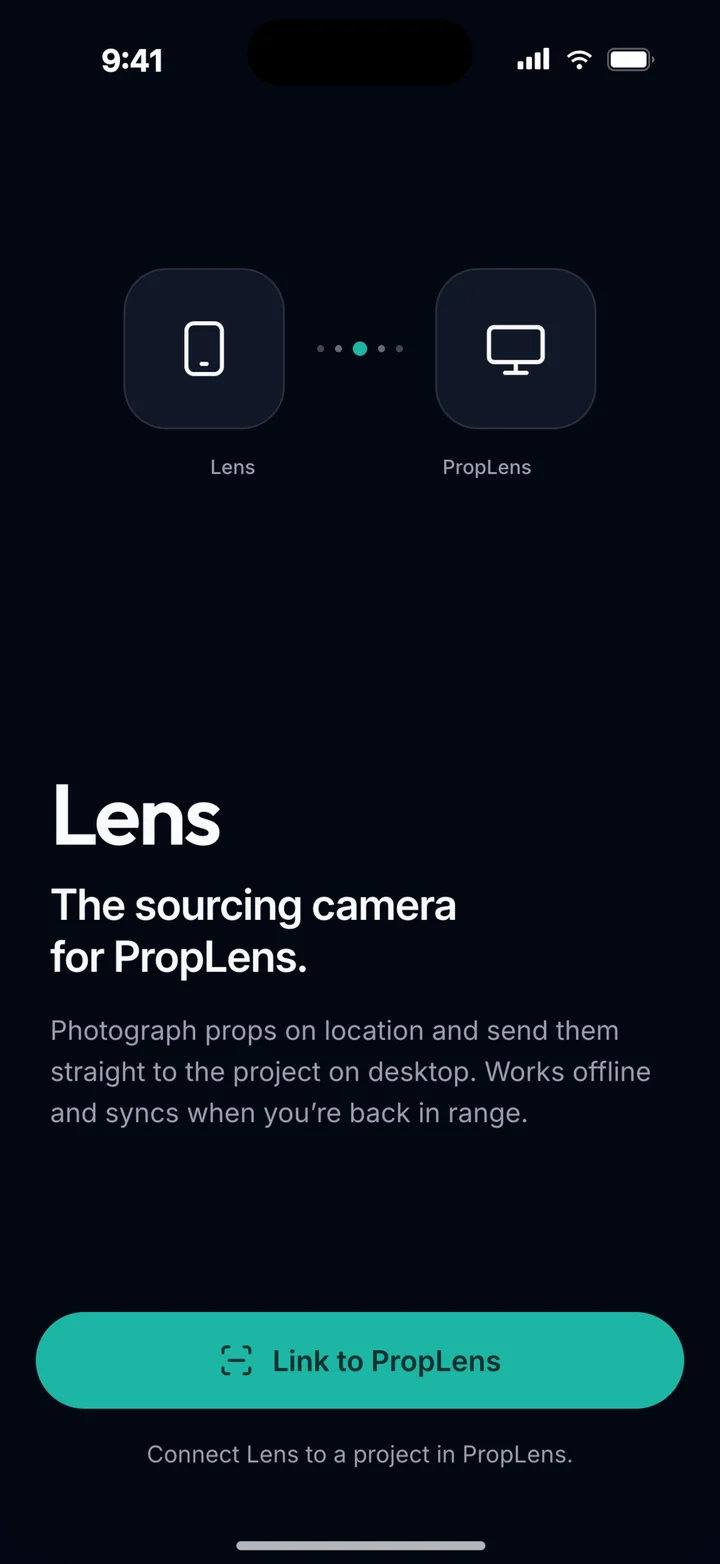
The sourcing camera for PropLens
Photograph props on location and send them straight to the project on your computer. Lens works offline and syncs when you’re back in range, so sourcing days stop ending in a camera roll to sort through.
Free on iPhone, Android coming soon. Lens links to a PropLens account, so sign up on your computer first.
Sourcing, simplified
PropLens is where the art department organises props, tasks and bookings. Lens is how props get in: shot at the supplier, named, tagged to where they came from, and waiting in the project when you get back to your desk.
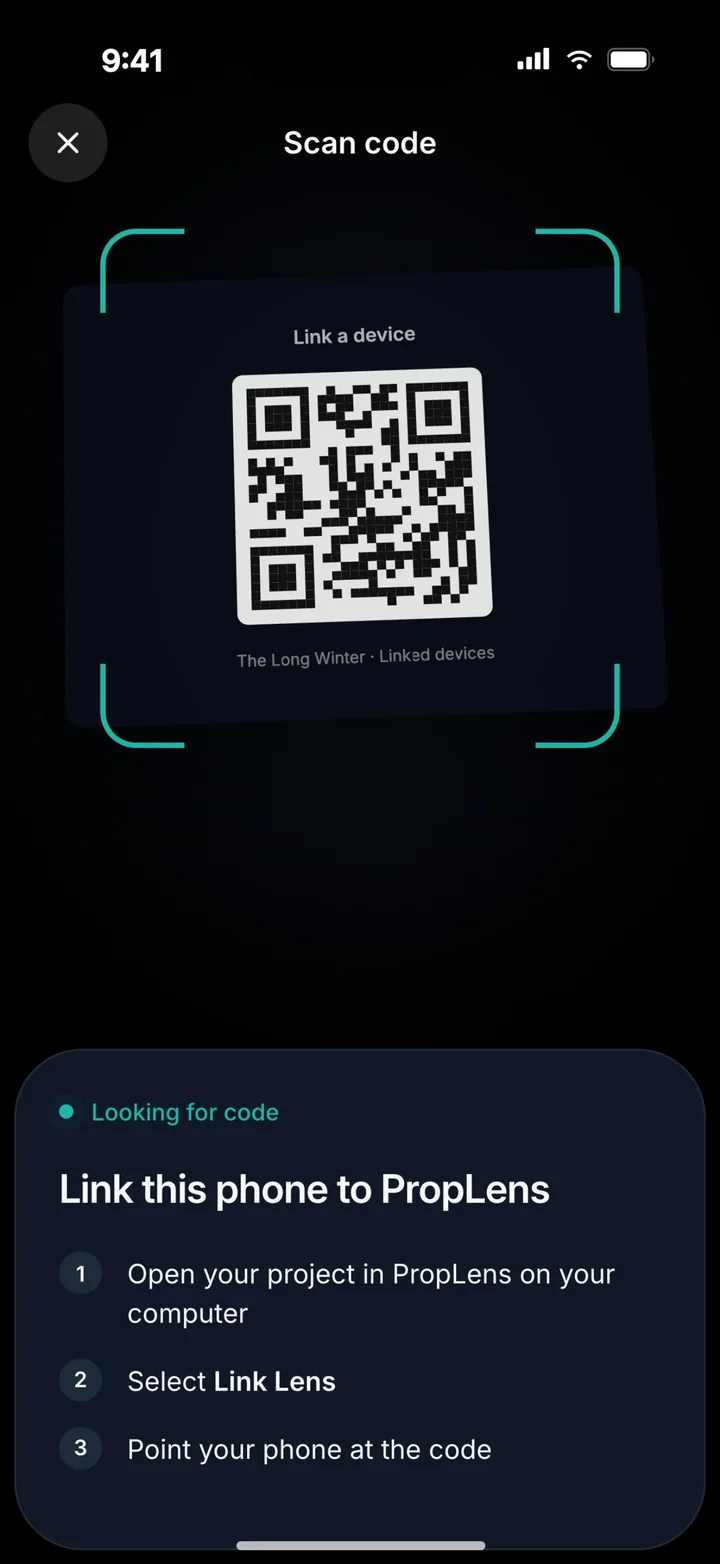
Link a phone to a project with a QR code
In PropLens on your computer, open Account settings → Lens (or Link Lens from the project menu) and click Show link code, then point the phone at the code. Lens follows the project you have active on your computer, so you can switch productions without touching the phone.
- No separate sign-up on the phone
- Lens always shows which project and computer it’s linked to
- Unlink any time, and choose whether unsent photos upload first, stay on the phone or are deleted
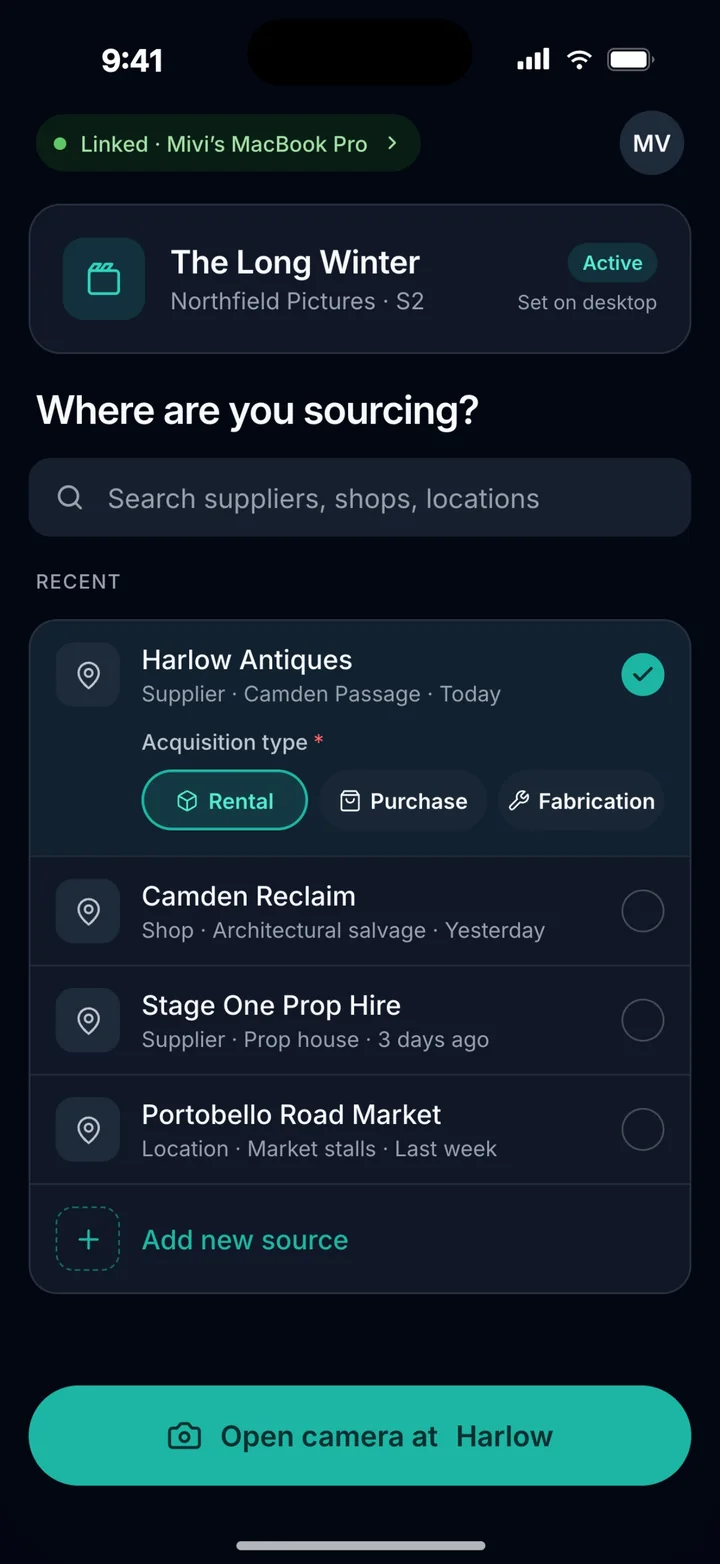
Say where you’re sourcing before you shoot
Choose a recent supplier, shop, private seller or location, or add a new one with its address and contact. Everything you shoot there is tagged to it, with the acquisition type: rental, purchase or fabrication.
- Recent sources one tap away
- Supplier, shop, private seller or location
- Phone, address and notes saved with the source
Shoot each prop from every angle
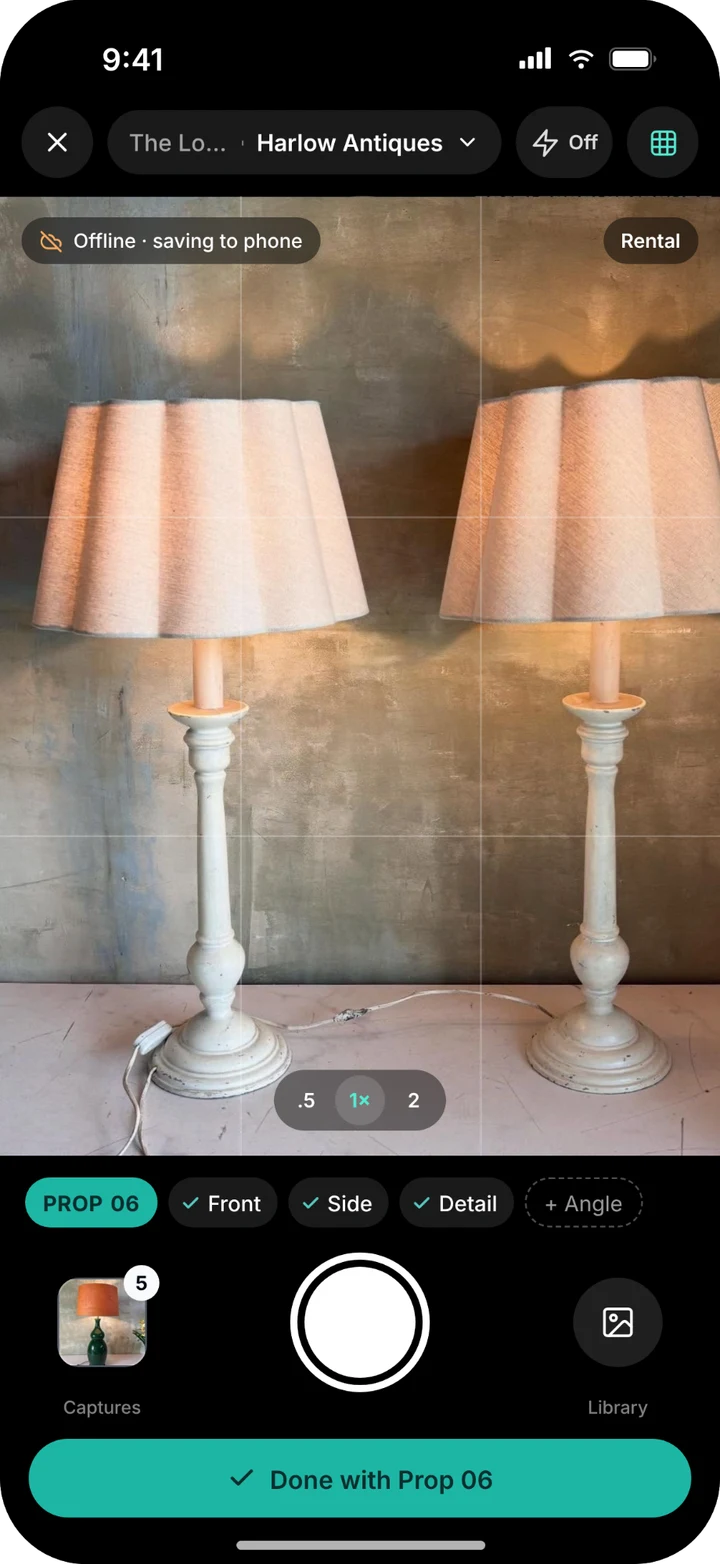
Take front, side, detail and extra angle shots of a prop in one go. Switch between 0.5×, 1× and 2× lenses, use the grid and flash, or bring in photos from your library as extra views of the same prop.
- Front, side, detail and angle views per prop
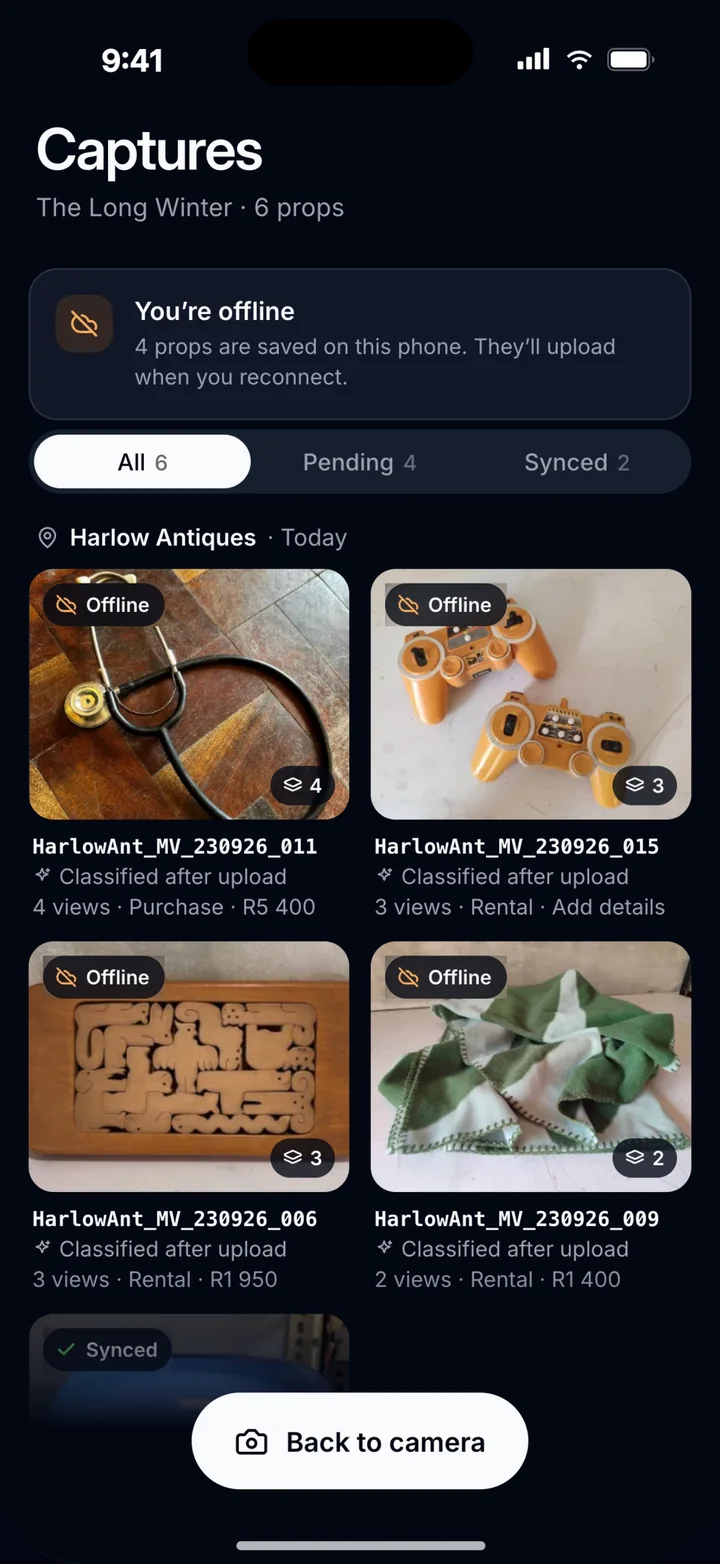
- Offline badge when there’s no signal: it saves to the phone
- Each prop gets an automatic name, so nothing is called IMG_4021
Fill in what you know while the prop is in your hand
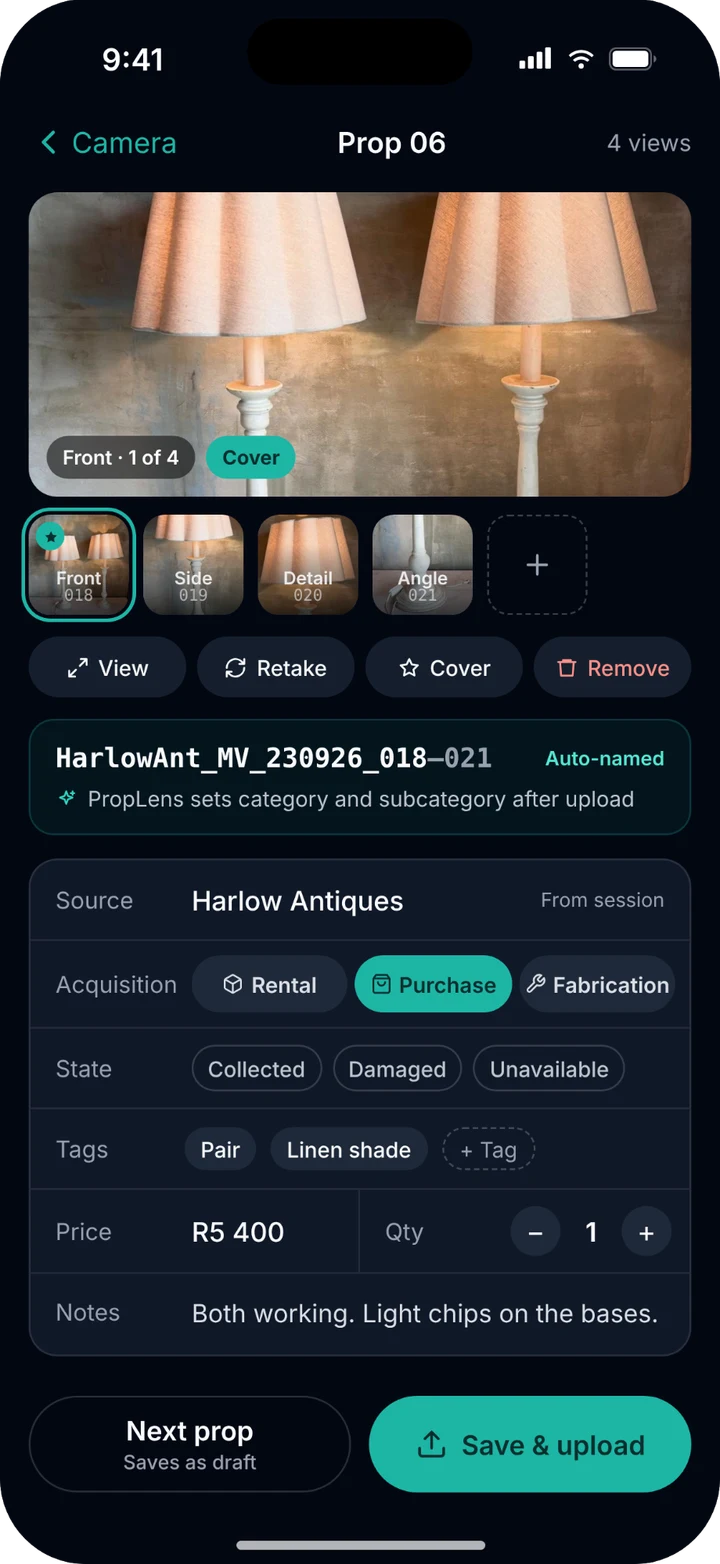
Add the price, quantity, tags and notes, mark its state, and confirm the acquisition type. Save and upload now, or move to the next prop and save this one as a draft. PropLens sets the category and subcategory after upload.
- Price, quantity, tags and notes
- State: collected, damaged or unavailable
- Save & upload, or keep it as a draft
Works offline. Syncs when you’re back in range.
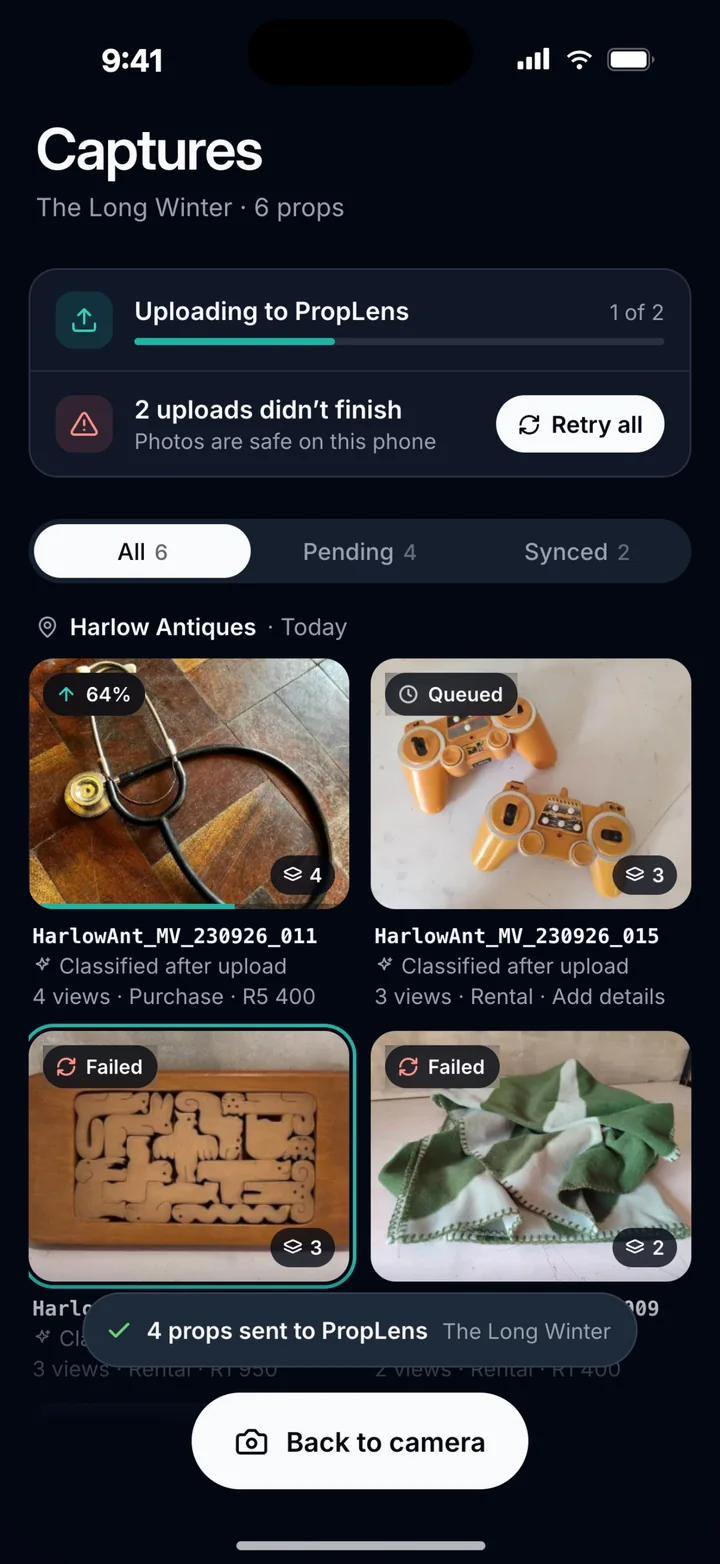
Photos are saved on the phone first and uploaded in the background. The captures list shows what’s uploading, queued, synced or still on the phone, and anything that doesn’t finish stays safe on the phone with a retry.
- Upload progress and a Pending / Synced filter
- “Photos are safe on this phone” when an upload fails
- Props land in the project on your computer, ready to organise
Lens questions
Where do I get Lens?
Lens is free on the App Store for iPhone. An Android version is coming soon.
Do I need an account on the phone?
No separate account. You link Lens by scanning a code shown in PropLens on your computer, under Account settings → Lens. Anyone on the crew can link their own phone.
What if there’s no signal at the shop?
Lens saves everything to the phone first, then uploads in the background when it can. You can keep shooting and the captures list shows what is still waiting.
What if an upload fails?
Photos stay on the phone, never deleted by a failed upload. Lens flags what didn’t finish and lets you retry.
Which project do my photos go to?
The project you have active in PropLens on your computer. If you switch projects there, Lens follows automatically.
What happens when I unlink a phone?
Lens asks what to do with props that haven’t synced yet: upload them first, keep them on the phone, or delete them.
Where do the photos end up?
In the project on your computer, where you can organise them with the rest of your props, suppliers and tasks.
Take the PropLens workspace on location
Create an account, start your free trial and link your phone with Lens.